Tutorials · Distributed setup

Set up your render farm.Connect every machine.

Create the shared workspace, install Render Node, and add the machines that will process your jobs.

01

Configure the Shared Folder

Switch Eclipse to Distributed mode and choose where the Manager and Render Nodes will exchange job data.

I have a NAS

Mount the NAS in Finder or File Explorer, then choose the farm folder.

Share from this computer

Recommended if you don’t already use a NAS. Create the Shared Folder on your Manager computer, with no extra hardware.

Use existing shared folder

Reconnect an existing Eclipse farm folder on a NAS or shared computer.

Check this first

All machines need read/write access to the Shared Folder. If hosted on a computer, keep it powered on, awake, and connected while the farm runs. Approve any required sharing or privacy permissions.

Can’t connect automatically?

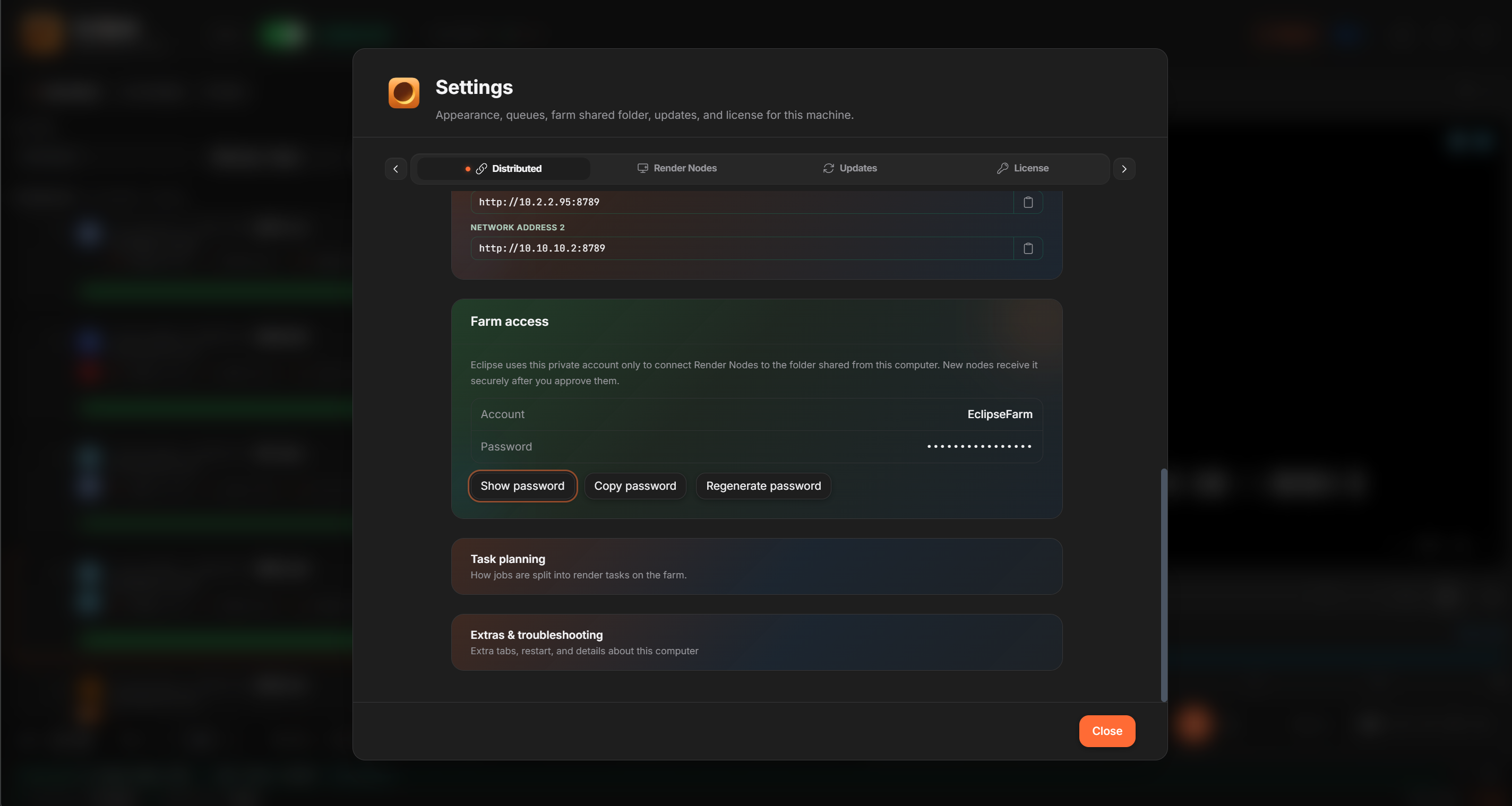
For a folder shared from the Manager computer:1. On the Manager, open Settings → Distributed → Farm access. Note the Account shown (usually EclipseFarm) and click Copy password.2. On the Render Node computer, open the Shared Folder’s network address in File Explorer (Windows) or Finder → Go → Connect to Server (macOS). Use the folder’s network address, not the Coordinator’s HTTP address.3. Sign in with that account and password. On macOS, choose Registered User.4. Back in Render Node, choose the connected folder and check Shared folder: Ready.Keep the existing password. Do not click Regenerate password. For a NAS or another existing share, use the credentials supplied by its administrator.

Eclipse Settings, Distributed: Farm access shows the EclipseFarm account and the Copy password button. The password is hidden.
Settings → Distributed → Farm access. Use Copy password, not Regenerate password. Select the image to view it at full size.

02

Install your first Render Node

Install Render Node on each computer that should render, including the Manager computer if needed. Keep Eclipse Render Manager open while connecting nodes.

  1. This computerSelect this only when Render Node is installed on the same machine as Eclipse Manager.
  2. CapabilitiesEnable only DCCs, renderers, and submission modes supported by this computer’s installed tools and licenses.
  3. Node WeightChoose Light (1), Low (2), Balanced (3), High (4), or Max (5). This is relative capacity for weighted jobs, not job priority.
  4. Another machineChoose your Manager on the network and approve the pairing request in Eclipse Render Manager. Connect to the same Shared Folder.

Install submission integrations

Submit Distributed jobs from this Render Node computer to the connected farm. The integrations add Eclipse submitters to your DCCs; they do not install the DCCs or renderers themselves.

  1. 1. Open IntegrationsUse Integrations in the Render Node header to open Manage Integrations.
  2. 2. Install for your DCCChoose the installed DCC versions you use and run their integration installer.
  3. 3. Open your DCCReopen the DCC, enable its Eclipse plugin if required, and submit a Distributed job to the farm.

03

Add and control your nodes

Check online status in Network Map. Pause prevents new claims; Stop Node releases active work. Use Edit by Coordinator or Shared folder to change a connection later.

Change capabilities later

Update what a node can render after its initial setup, for example when you install a new DCC or renderer. Enable only tools and versions available on this machine, with the required licenses.

  1. 1. Open CapabilitiesUse Capabilities in the Render Node header.
  2. 2. Update supported toolsReview DCC / integrations and Render engines. Enable or disable the combinations this node can run.
  3. 3. Save the profileAdjust Node Weight under Scheduling if needed. Use Save profile if shown, then check the node in Network Map.

Enable GPU frame distribution

Let a multi-GPU node run separate Redshift or Octane tasks on its enabled GPUs. Configure this on each Render Node that should split work across GPUs.

  1. 1. Open GPU settingsIn Render Node, open Settings → GPU.
  2. 2. Choose the GPUsUnder GPU Frame Distribution, use Refresh GPUs if needed and enable at least two GPUs.
  3. 3. Enable distributionTurn on Distribute across enabled GPUs. Save GPU settings to profile if prompted.

Important

GPU splitting requires at least two enabled GPUs and a supported Redshift or Octane job with GPU splitting enabled in its submitter. Other renderers are not split by this setting.

Farm ready

Submit across your machines.

Before submitting, check Coordinator: Connected and Shared folder: Ready on each node. In Network Map, confirm it is online and not paused.

Submit a distributed job →